Clear Cookies
How to Clear Cookies in Popular Browsers
Cookies are small files stored on your device by websites you visit. Clearing them can help fix website issues. Follow the instructions below for your browser and device. We recommend using the latest version of Google Chrome, as our platform is most compatible with it.
Table of Contents
Mobile
Desktop
- Google Chrome (Desktop)
- Mozilla Firefox (Desktop)
- Safari (macOS/Desktop)
- Microsoft Edge (Desktop)
- Opera Browser (Desktop)
1. Android (Chrome)
- Open Chrome on your Android device.
- Tap the three dots in the top-right corner.
- Tap History > Clear browsing data…
- Choose a Time range.
- Check Cookies and site data.
- Tap Clear data.
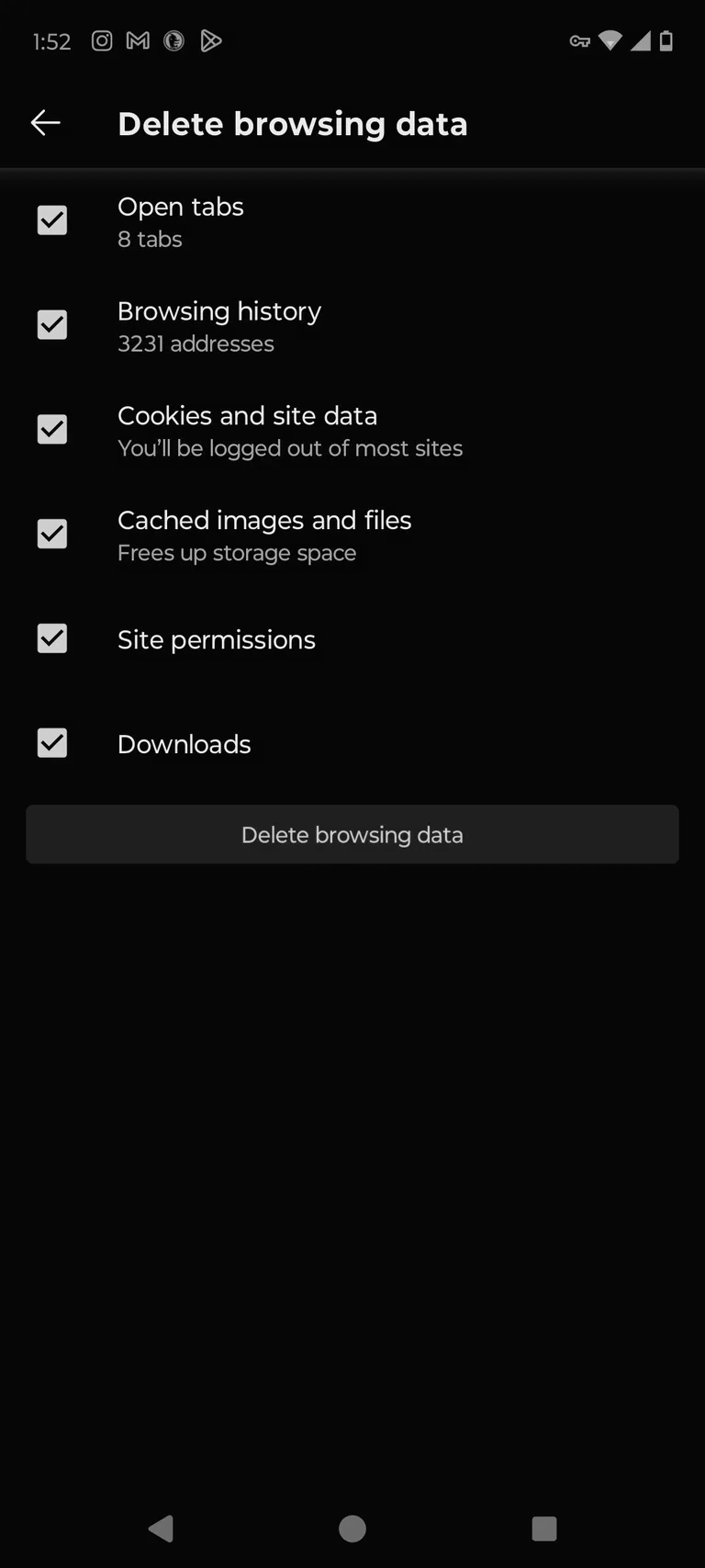
Figure: Clear Cookies in Android Chrome
2. iPhone/iPad (Safari)
- Open Settings.
- Scroll down and tap Safari.
- Tap Clear History and Website Data.
- Confirm by tapping Clear History and Data.
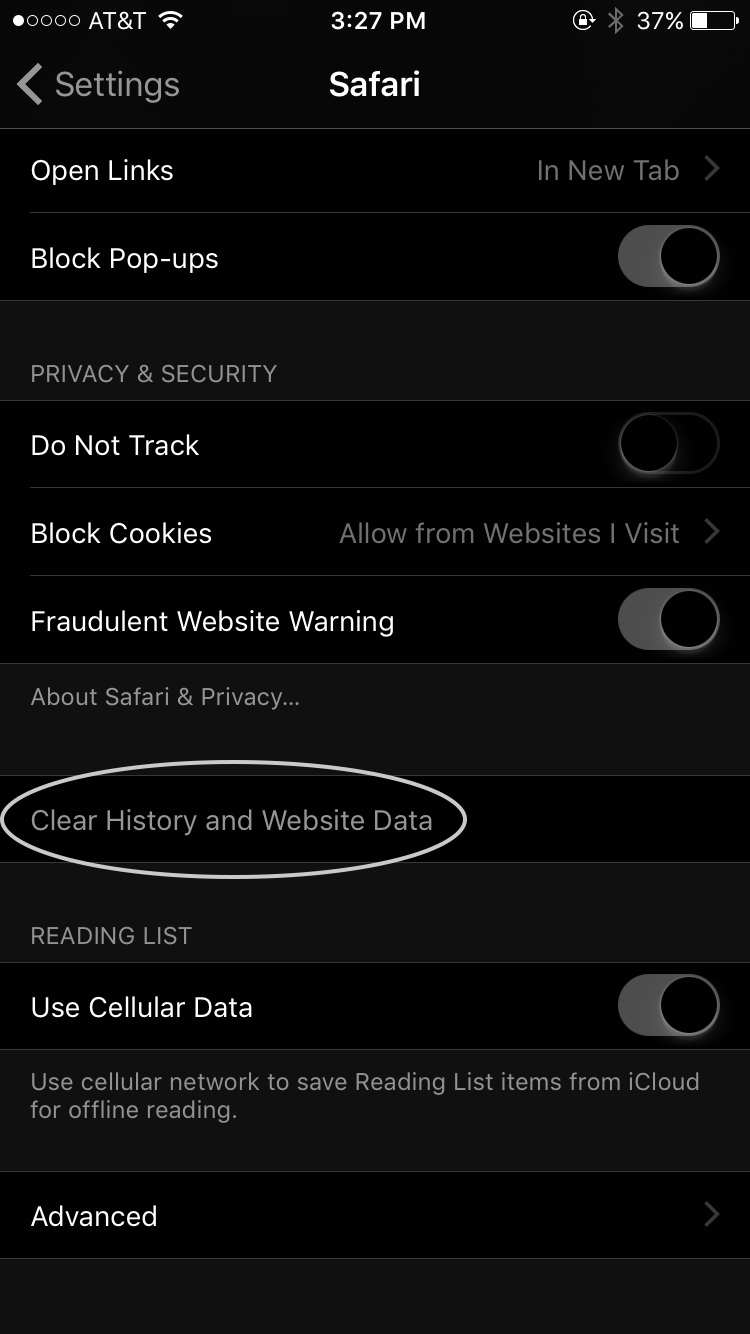
Figure: Clear Cookies in iOS Safari
3. Google Chrome (Desktop)
- Open Chrome.
- Click the three dots (...) in the top-right corner.
- Go to Settings > Privacy and security.
- Click Clear browsing data.
- In the popup, select the Time range (e.g., "All time").
- Check Cookies and other site data.
- Click Clear data.
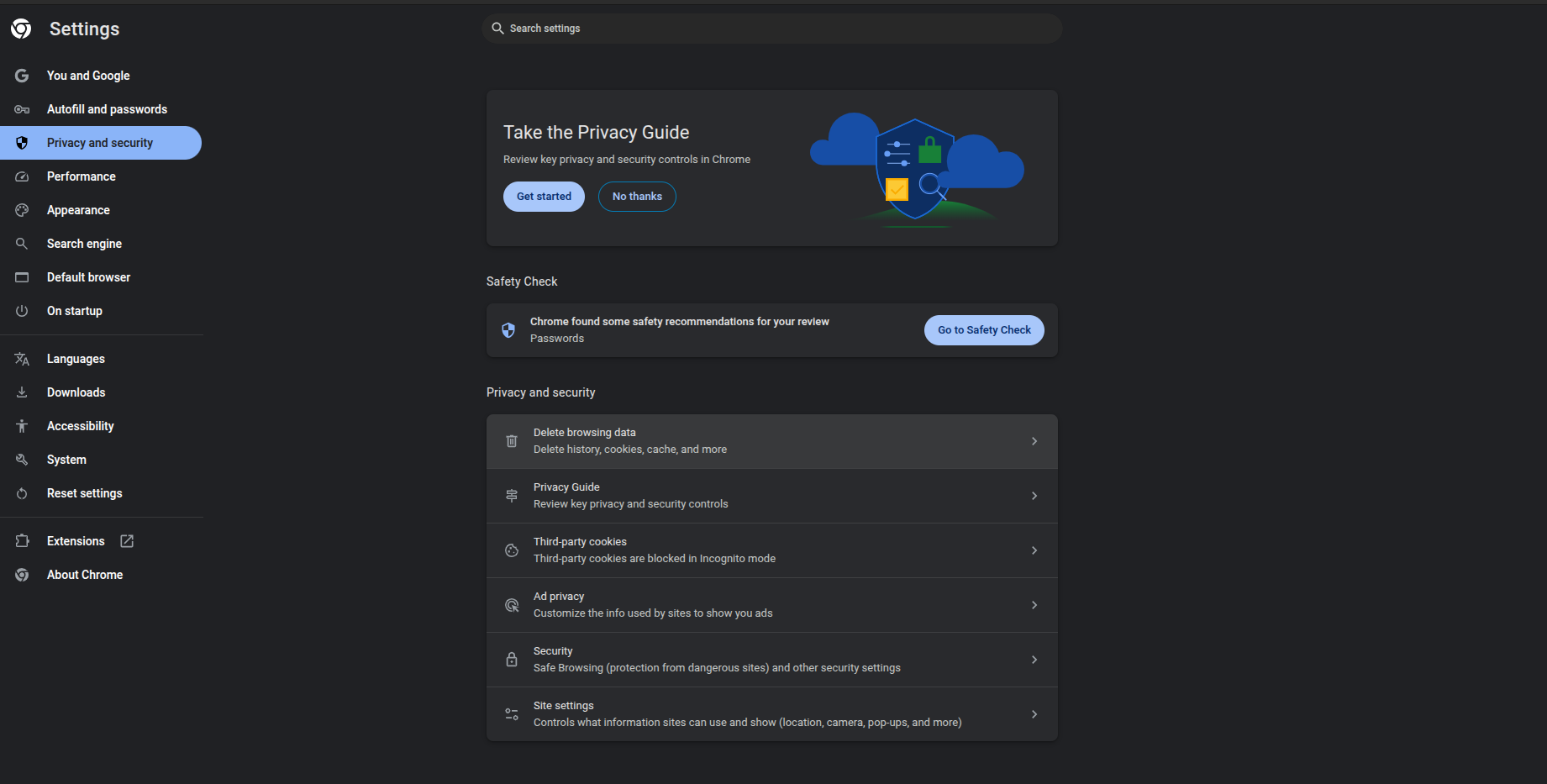
Figure: Clear Cookies in Google Chrome (Desktop)
4. Mozilla Firefox (Desktop)
- Open Firefox.
- Click the three lines (≡) in the top-right corner.
- Select Settings.
- Go to Privacy & Security on the left sidebar.
- Scroll to Cookies and Site Data.
- Click Clear Data…
- Select Cookies and Site Data and click Clear.
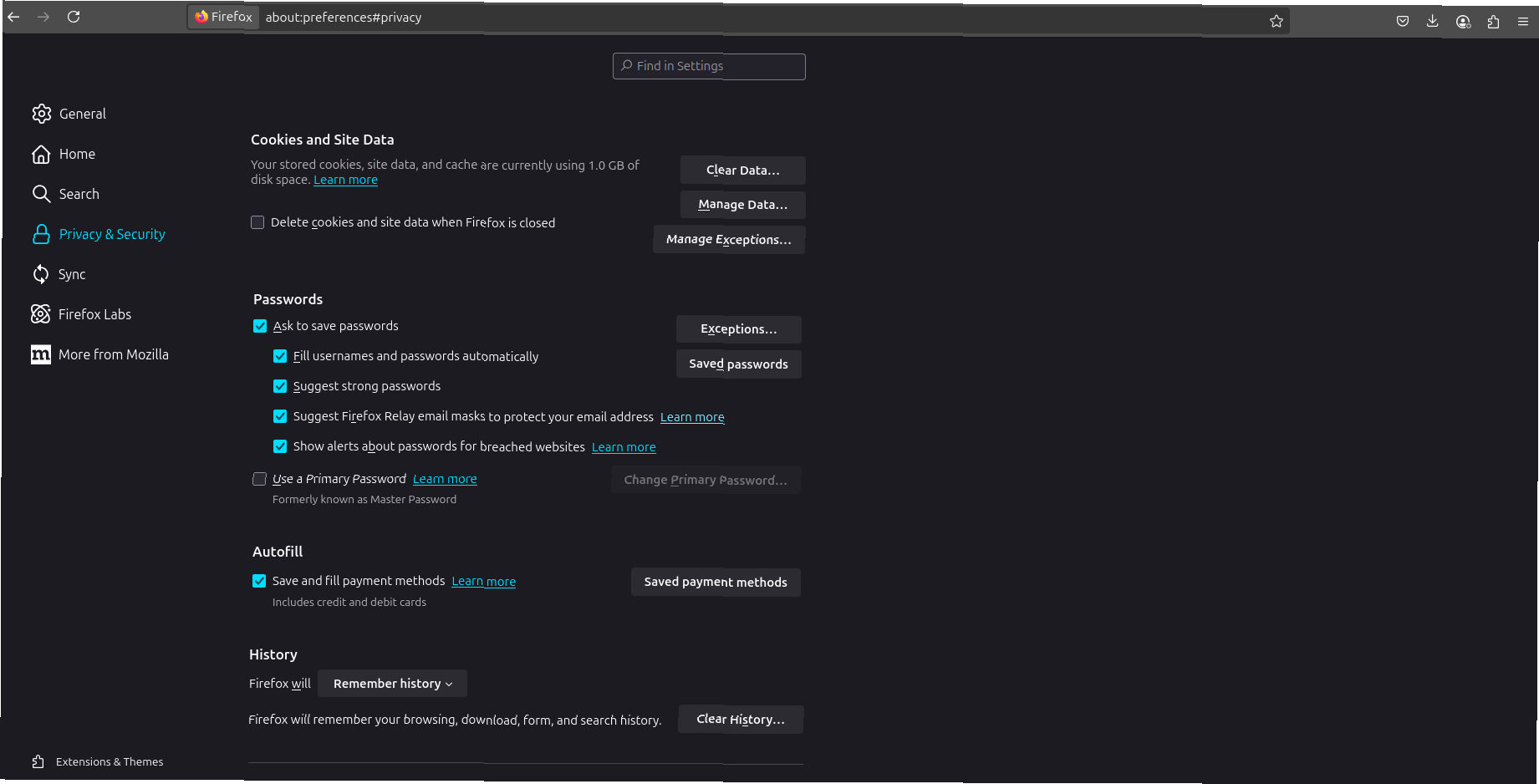
Figure: Clear Cookies in Mozilla Firefox
5. Safari (macOS/Desktop)
- Open Safari.
- Click Safari > Settings (or Preferences).
- Go to the Privacy tab.
- Click Manage Website Data…
- Click Remove All to delete all cookies.
- Confirm by clicking Remove Now.
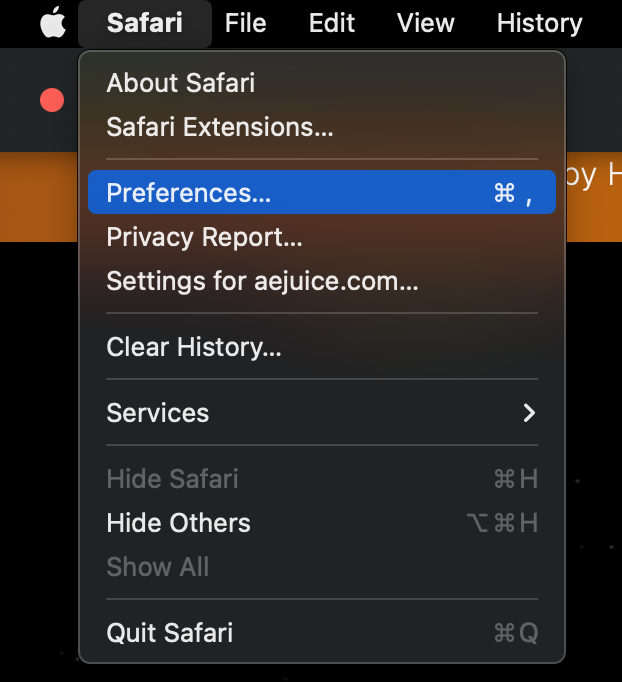
Figure: Clear Cookies in Safari (macOS)
6. Microsoft Edge (Desktop)
- Open Edge.
- Click the three dots (...) in the top-right corner.
- Select Settings.
- Click Privacy, search, and services.
- Under Clear browsing data, click Choose what to clear.
- Select Cookies and other site data.
- Choose the time range and click Clear now.
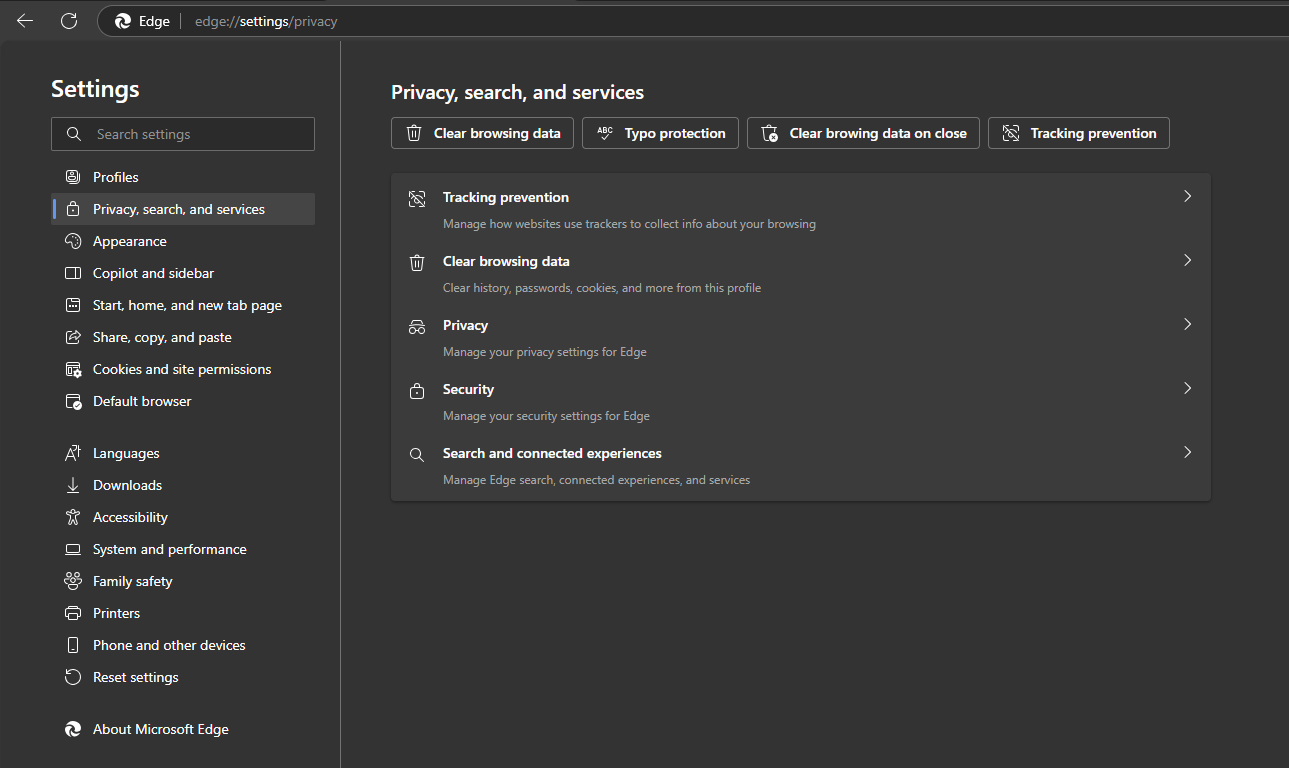
Figure: Clear Cookies in Microsoft Edge
7. Opera Browser (Desktop)
- Open Opera Browser.
- Click the three horizontal lines (Easy Setup) in the top-right corner, or go to the Opera Menu (top left).
- Select Settings (or press
Alt + Pon Windows,⌘ + ,on macOS). - In the left sidebar, click on Privacy & security.
- Under Privacy, click on Clear browsing data.
- In the popup:
- Choose a Time range (e.g., "All time").
- Check the box for Cookies and other site data.
- Click Clear data.
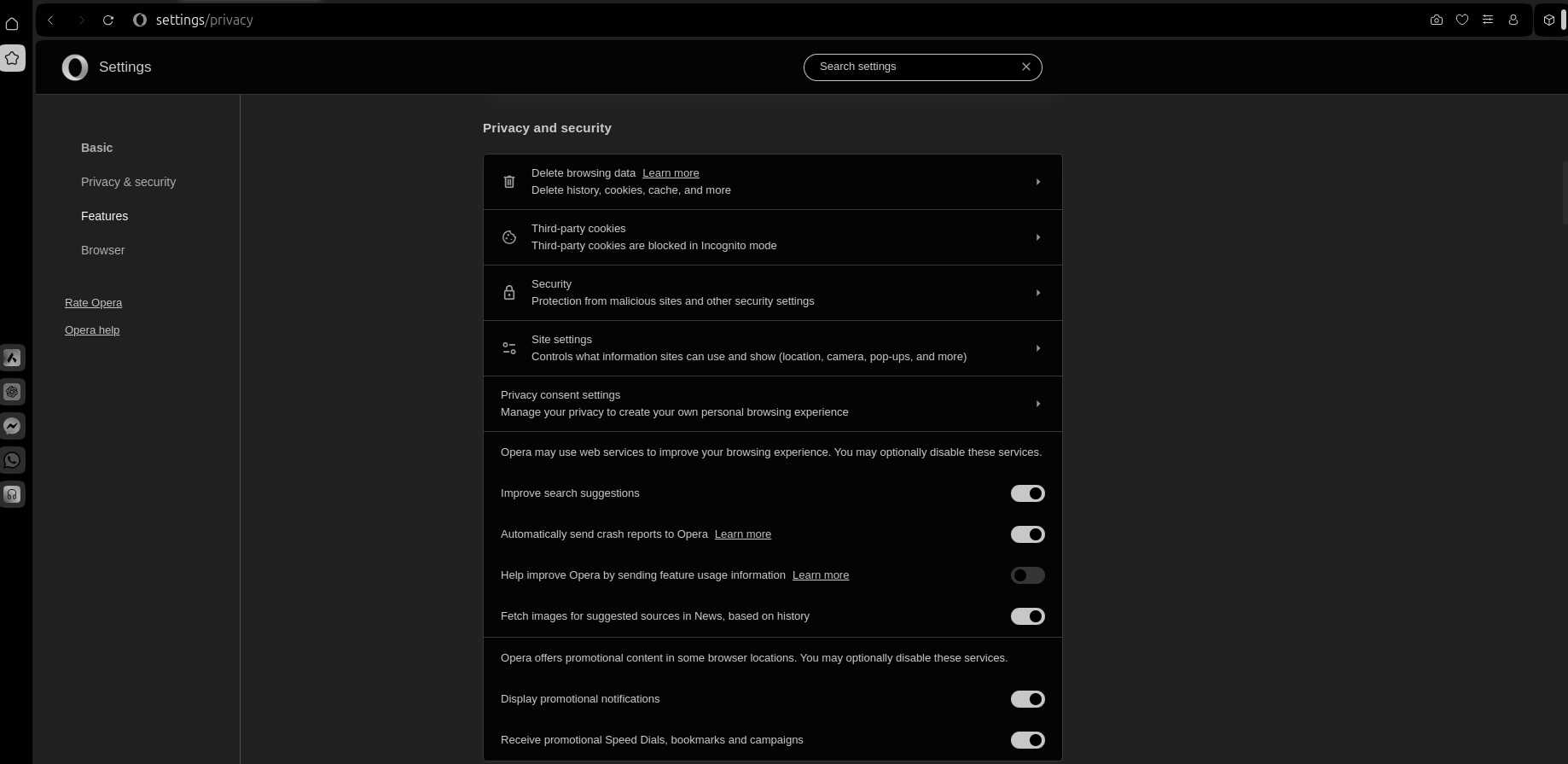
Figure: Clear Cookies in Opera Browser